
Troubleshooting JobNav Anywhere on Edge
Troubleshooting a browser extension can be tricky, but there are some systematic steps you can take to address some of the most common issues we've encountered.
Defining the Issue
When troubleshooting a problem with JobNav Anywhere, it’s crucial to understand the conditions that trigger the issue. If you can reproduce the problem consistently, it makes it easier to track down the underlying cause and eventually fix it. Inconsistent behavior can be difficult to debug because it might involve unknown or intermittent factors.
A. Understand the Problem: Try to figure out what the issue is in clear terms:
- Is the extension not doing something it should (e.g., not showing a notification, not interacting with the page properly)?
- Or is it causing an error (e.g., a crash or a bug where the page doesn’t load correctly)?
Knowing what is wrong is key, but understanding when and why it happens is even more important.
B. Identify Specific Scenarios: Think about the conditions under which the extension behaves incorrectly. Are there specific websites, pages, or actions that seem to trigger the issue? For example:
- Does it break when you open a certain page or click a particular button?
- Visiting a specific page: specifically most ATSs have different pages when you create or edit a job post, do you see this issue on the create or edit pages or both.
- Does it fail after a certain time or only when there’s a lot of data loaded?
- Using a certain feature: specifically, were you on a confidential or private job?
Try to break the issue down into steps: Can you walk through a series of actions that lead to the problem?
Common Issues
1. Ensure JobNav Anywhere is enabled
A. Go to edge://extensions
B. Ensure that JobNav Anywhere is toggled on (green and white toggle, or right in the image below) and not toggled off (black and white toggle, or left in the image below).

2. Check for Extension Updates
While Edge will usually update your extensions automatically, you should check to ensure that you are using the latest version which may include fixes to bugs or compatibility issues.
A. Go to edge://extensions
B. Enable Developer mode
C. Click the Update button
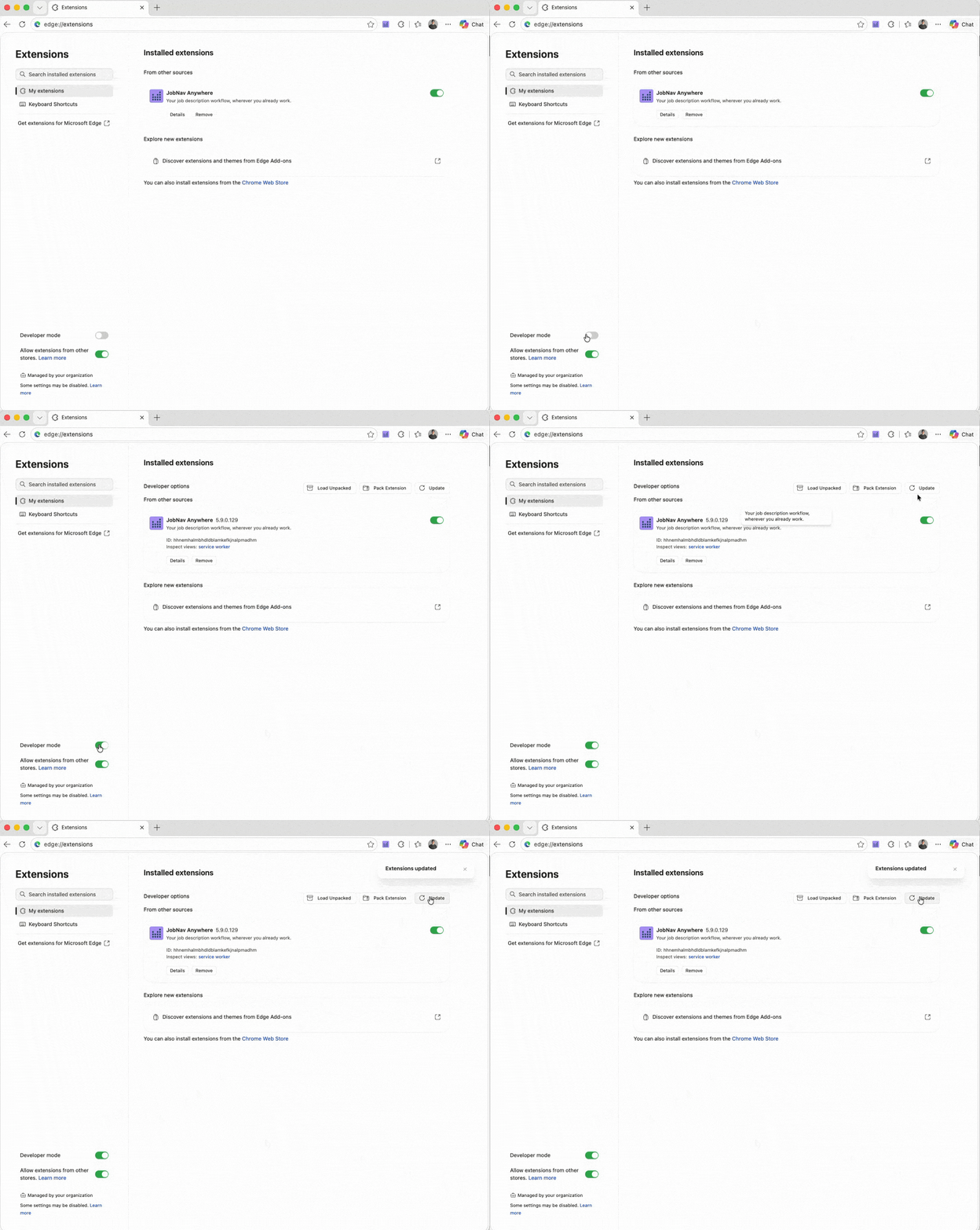
If there is a newer version of our extension than the one you are using, it will update.
3. Reinstall the extension
A. Go to this link
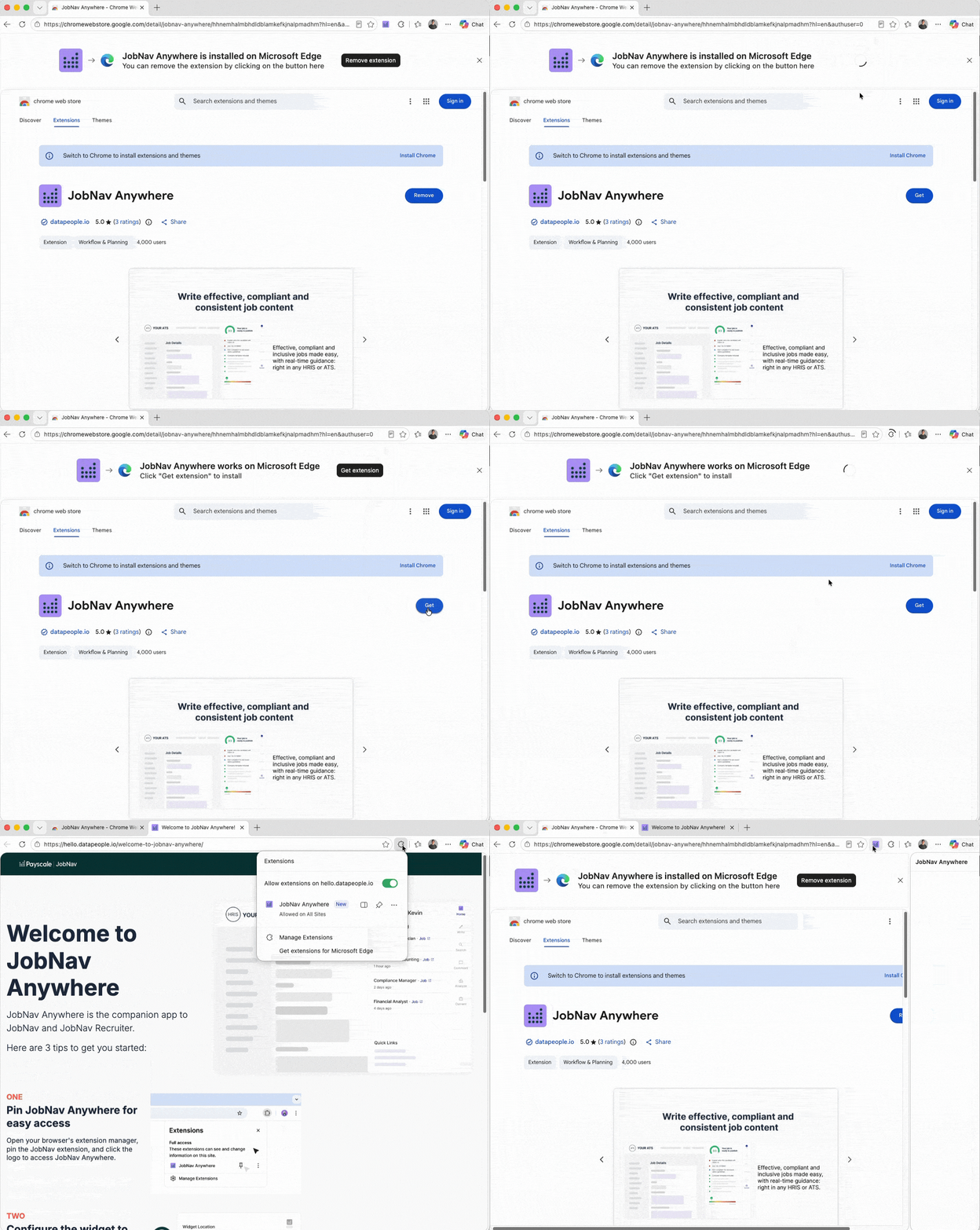
B. Click the Remove extension button and then confirm by clicking Remove
C. Click the Get extension button and then confirm by clicking Add Extension
D. Pin the extension to enable it
E. Refresh the page
4. Enable third-party cookies
A. Go to edge://settings/content/cookies
B. Select Allow sites to save and read cookie data and ensure that block third-party cookies is disabled
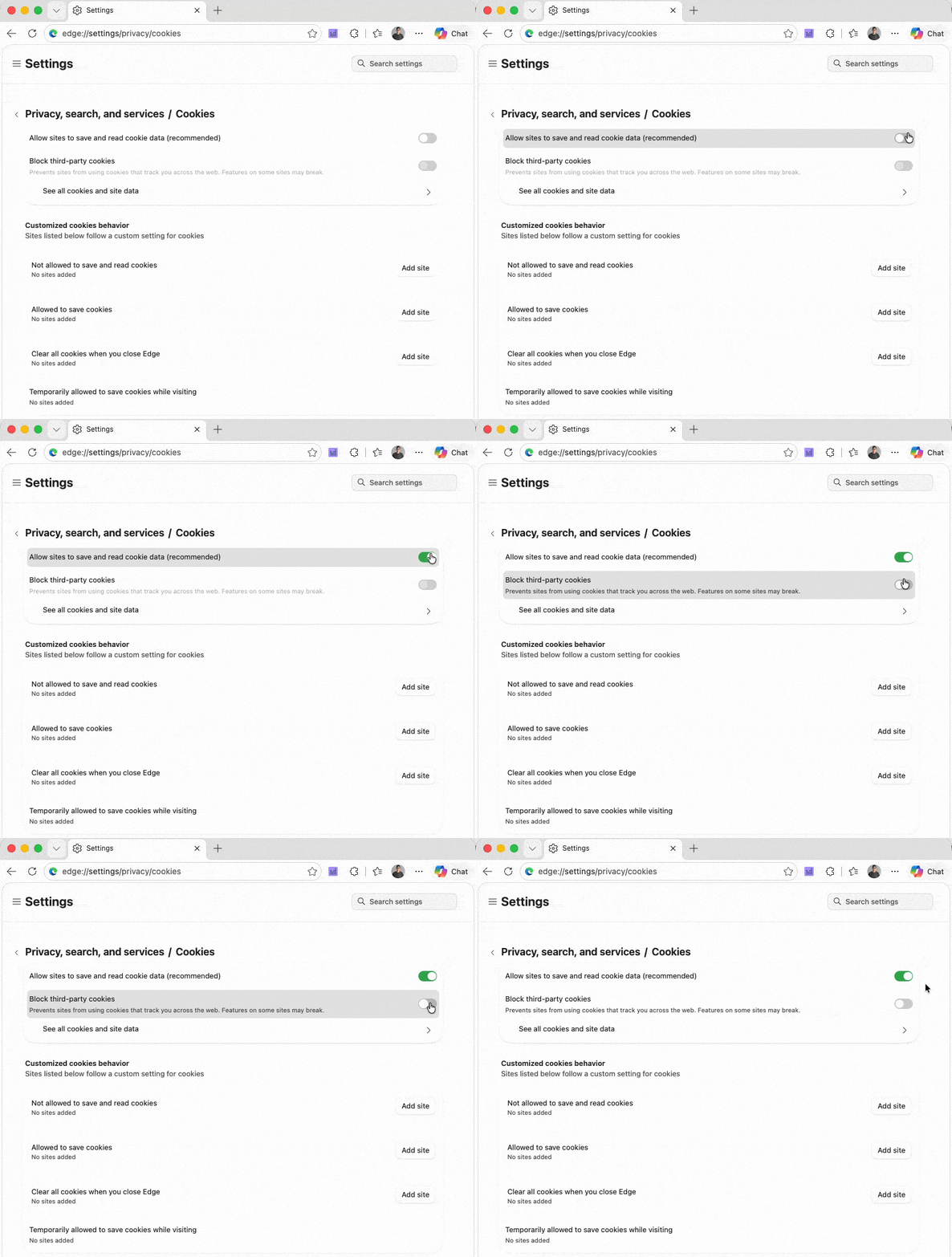
C. Refresh the page where you expect to see JobNav Anywhere.
4. Test in InPrivate Mode
InPrivate mode is one way to evaluate if the issue is related to conflicting extensions or settings in your normal browsing session. By default, the Chrome Store does not allow extensions to be allowed to work in InPrivate mode. To enable this:
A. Go to edge://extensions
B. Find the JobNav Anywhere extension and click the Details button
C. Toggle Allow in InPrivate
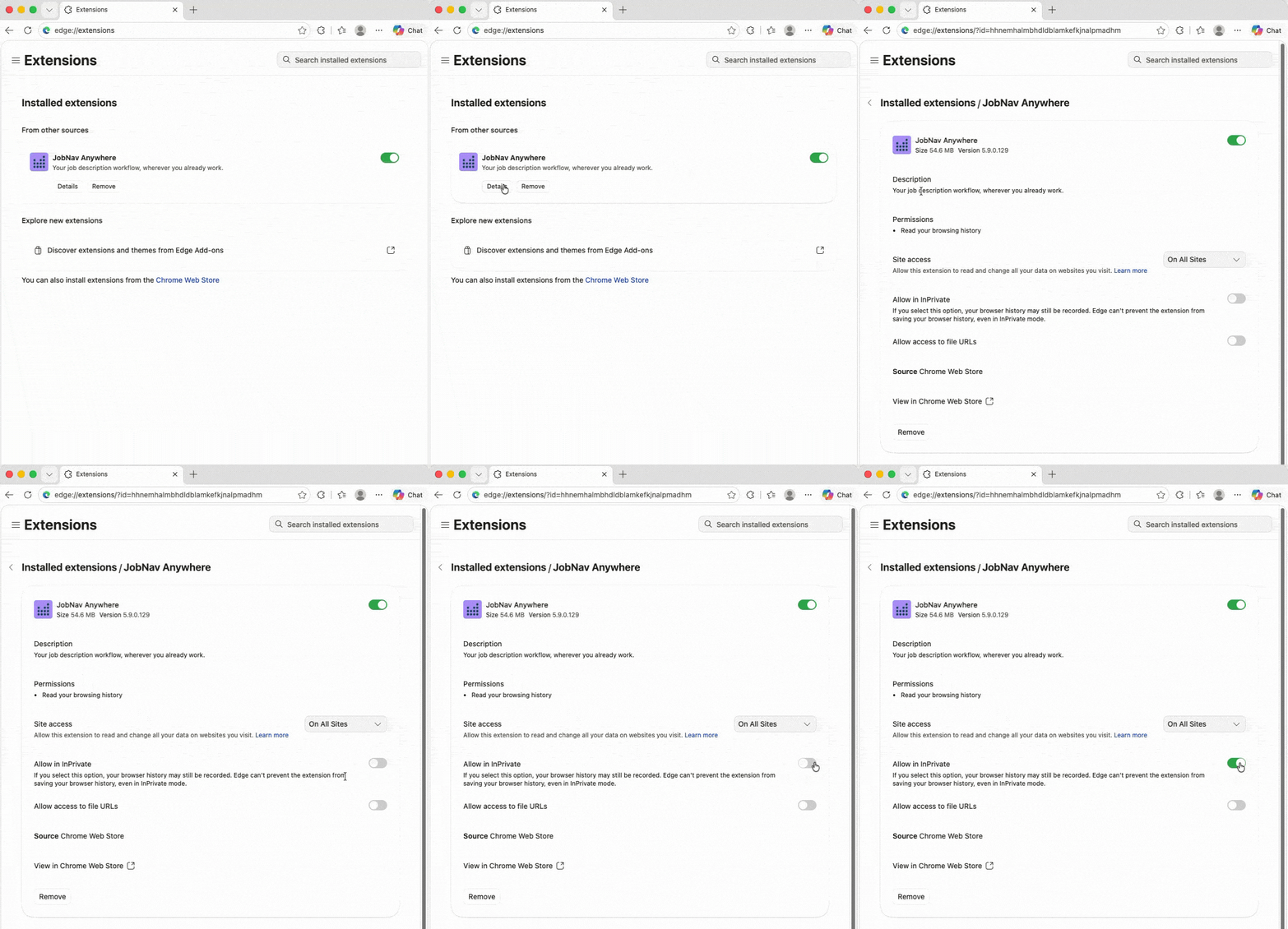
D. Open a new window with InPrivate mode and reattempt your actions with JobNav Anywhere.
5. Disable other extensions
Sometimes conflicts between extensions can cause issues. Try disabling all other extensions to see if they are interfering with the behavior of JobNav Anywhere. Then if you don’t see the error, turn them on individually to determine which extension is causing the issue.
6. Clear JobNav Anywhere's storage
Like many extensions, JobNav Anywhere uses different storage volumes in your browser to store data. Some users can encounter corrupted storage data which will impact JobNav Anywhere's settings. To determine if this is the case, you will clear JobNav Anywhere's storage and see if the issue persists.
A. Go to edge://extensions and turn on Developer mode.
B. Under the JobNav Anywhere card, click on the service worker link. This opens a new DevTools window.
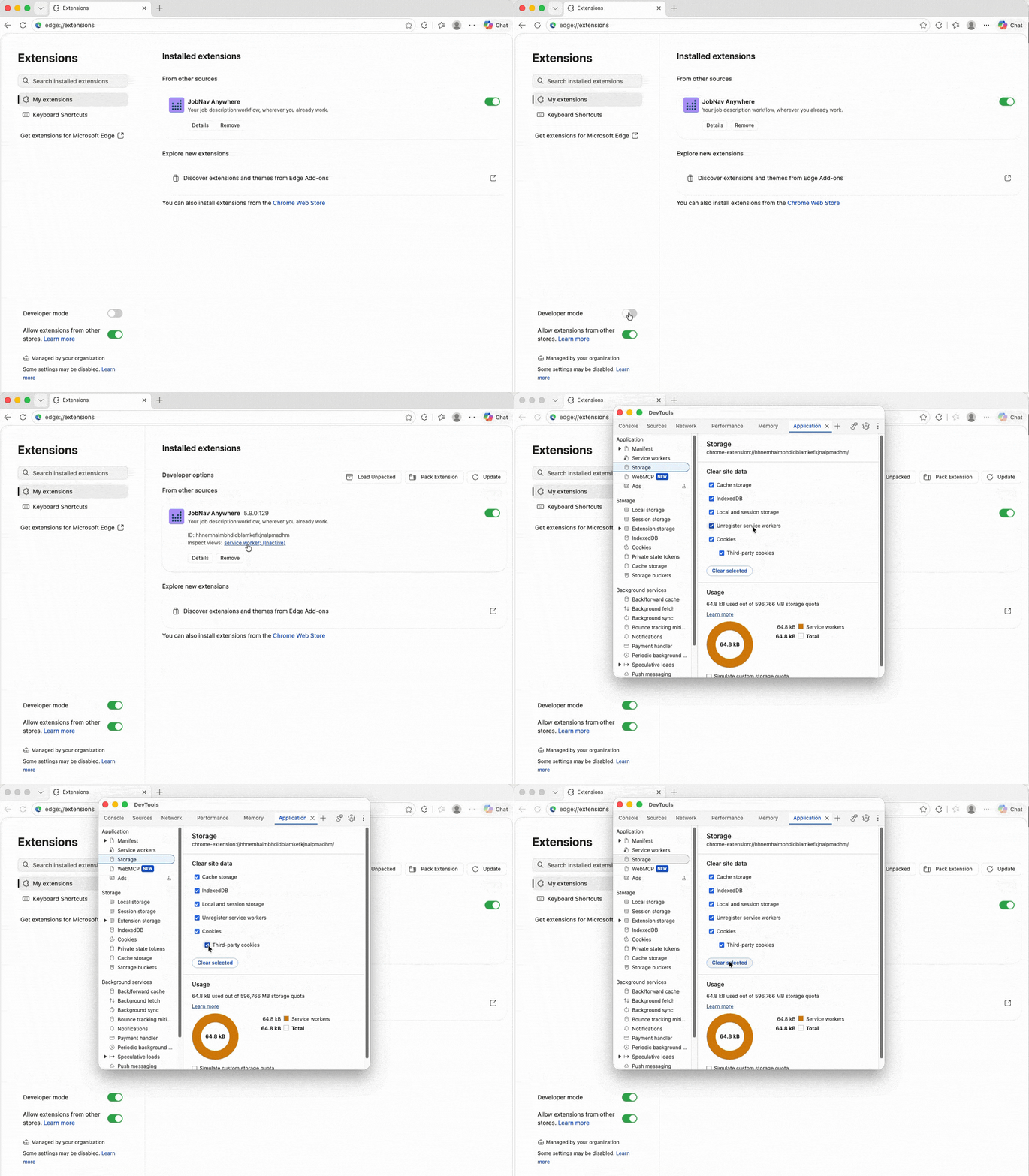
C. Navigate to Application > Storage and scroll down to Clear site data button. Make sure to select including third-party cookies before you click the Clear site data button.
D. Refresh the page where you encountered an error in JobNav Anywhere to determine whether this addressed your issue.
7. Reach out to JobNav Support
If these don’t fix the issue, please reach out to our Support team with the following information:
-
Video capturing the issue. It's most helpful if the screen recording is of the entire window so we can see the URL of the pages you are interacting with.
Unfortunately, screenshots don’t help us because we don’t have any analytics on third party pages like your ATS that we can cross-reference.
- Description of the issue
- Browser and its version. Go to edge://settings/help to identify which version you are using.
- Extension version. Go to edge://extensions and click on the Details button in the JobNav Anywhere card.