
Installing JobNav Anywhere for Edge
This article covers installing JobNav Anywhere on Microsoft Edge. For information on using JobNav Anywhere with Google Chrome, click here.
Enable Edge to accept Chrome Store extensions
A. Go to edge://extensions
B. Ensure that Allow extension from other stores is toggled on.

C. Click Allow on the confirmation modal.

Install JobNav Anywhere
To install JobNav Anywhere, follow the steps below:
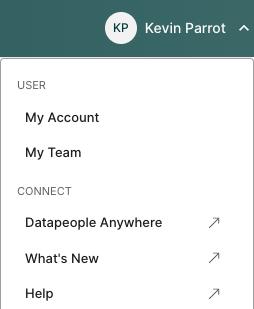
A. In JobNav, go to the Settings menu by clicking on your name in the upper right corner. Click on JobNav Anywhere in the menu
If you do not see this option, your account does not include access to JobNav Anywhere.
If you believe you should have access, please reach out to our support team.
B. In the Chrome web store, there will be a banner that says JobNav Anywhere works on Microsoft Edge. Click the Get extension button to install.

C. When prompted, accept permissions by clicking Add Extension

Set up JobNav Anywhere
Pin JobNav Anywhere for easy access
Pinning the extension enables JobNav Anywhere to be easily accessible in your extension menu.

To pin JobNav Anywhere:
- Open Edge's extension manager menu (the jigsaw piece icon)
- Click the thumbtack icon next to the JobNav Anywhere listing
- Click the logo to access JobNav Anywhere
Log in to JobNav Anywhere
If you are not logged in, the side panel will show the following page:
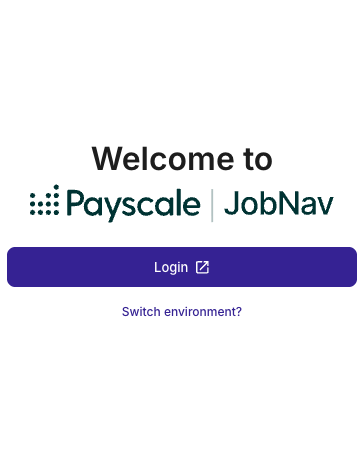
Clicking login will open up a new window for authentication.
Note: You must be logged in to JobNav Recruiter for JobNav Anywhere to work. If JobNav Anywhere is not working as expected, try these steps first.
Here are all the ATSs that JobNav Anywhere currently supports:
- ADP Workforce
- GR8 People
- Greenhouse
- iCIMS
- Lever
- SmartRecruiters
- SuccessFactors
- Taleo Business
- Taleo Enterprise
- UKG Pro
- Workday
If you'd like the widget to show up in other places where you work, we'd love to hear from you!