
Federal FLSA Dashboard
| Nav: Job Profiles > Workflows > Federal FLSA |
| Who can access: JobNav Operator and Admin. Editors and Viewers don't have access to the Federal FLSA workflow. |
The Federal FLSA Dashboard helps you track Federal Fair Labor Standards Act (FLSA) compliance across your organization. Use the summary cards and filters to find profiles that need action, then open a profile to review its alerts or submit a new questionnaire.
Draft vs. HRIS Linked
A toggle at the top switches between two views:
- Draft: For Draft Job Profiles
- HRIS-Linked: For HRIS-Linked Job Profiles (this is the default)
Columns, alerts, and actions are identical in both views. Only the source of the profiles changes.
Summary statistics
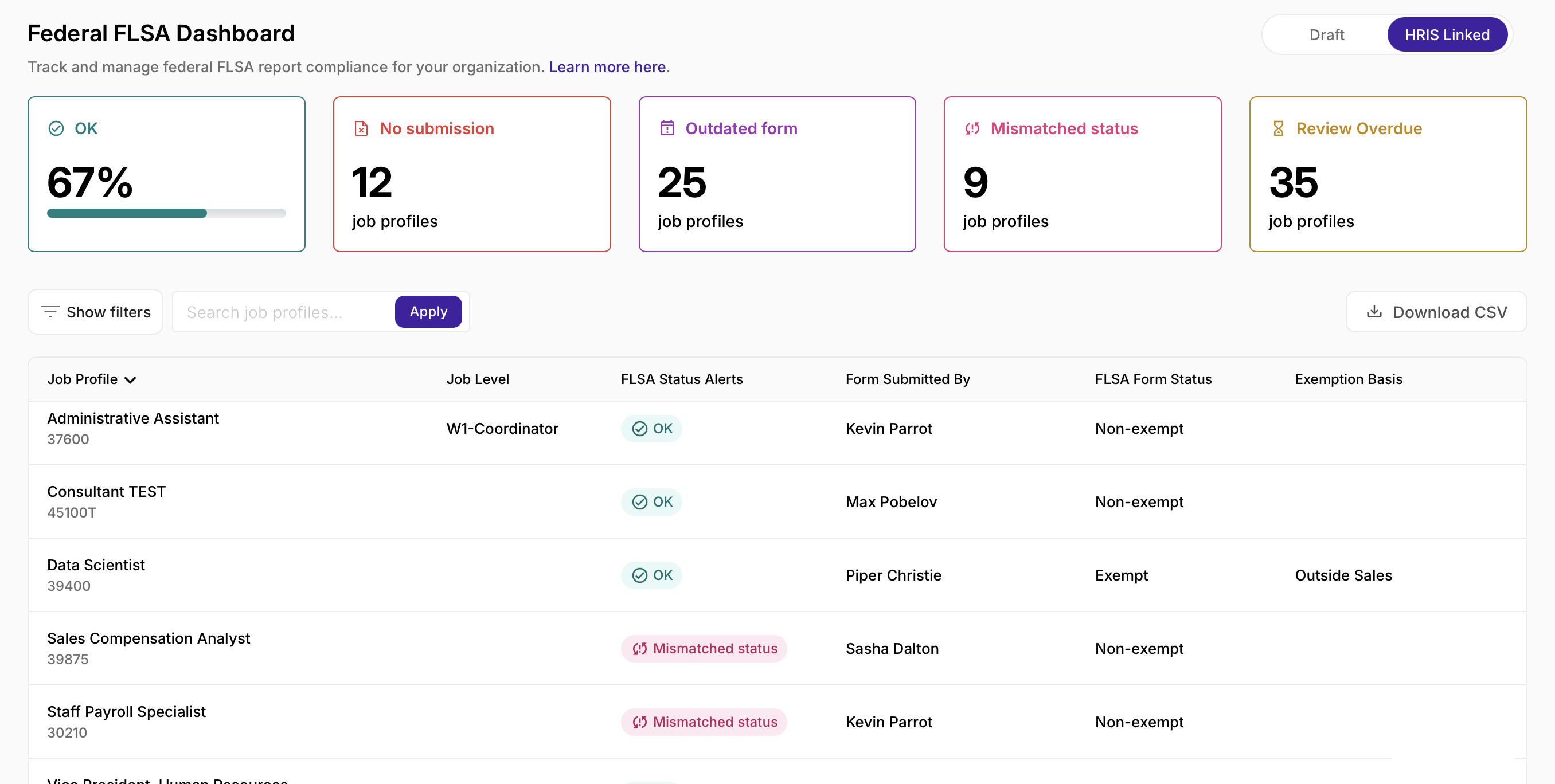
At the top of the page, you'll find a snapshot of where your organization stands across five statuses. Clicking any of them will filter the table below so you can focus on those profiles. Learn more about FLSA Alerts here.
| Card | What it shows |
|---|---|
| OK | Profiles up to date on Federal FLSA |
| No submission | No Federal FLSA questionnaire on file |
| Outdated form | Submission used an outdated survey version |
| Mismatched status | Questionnaire result doesn't match HRIS |
| Review Overdue | Last submission exceeds your FLSA Survey Cycle SLA. Learn more about your SLA here. |
Since a profile can carry more than one alert at once, the individual card counts won't always add up to your total number of profiles. That's expected, not a bug.
Federal FLSA Table
The table sorts by Job Profile alphabetically by default with a focus on the latest Federal form submission.
| Column | What it shows |
|---|---|
| Job Profile | Profile title |
| Job Level | Job level |
| FLSA Status Alerts | OK, No submission, Overdue, Mismatched status, Outdated form, or Multiple |
| Form Submitted By | Who submitted the latest Federal form |
| FLSA Form Status | Exempt or Non-exempt |
| Exemption Basis | Primary exemption category from the latest submission |
Click any row to open that profile's preview panel.
Search and filters
- Type a term into Search job profiles and click Apply. Your search shows up as a removable chip above the results.
- The filter drawer covers Alert Status, HRIS FLSA Status, FLSA Form Status, Job Level, Job Code, Primary Exemption Basis, and Created By.
- Download CSV exports whatever's currently showing based on your filters. This is disabled when there's nothing to export.
Job Profile Sidebar
When you click on a profile, a sidebar opens on the right with everything you need to know about that profile's FLSA history.
Here you'll find:
- The profile's key details including job code, level, family, and location
- Any active alerts, with an explanation of what triggered them and what to do next
- A full history of FLSA submissions, including the form version, exemption determination, completion date, and who filled it out
- For HRIS profiles, the HRIS exemption status sits right alongside the survey determination so you can compare them at a glance
From the sidebar, you can also:
- Jump to the profile in the Editor using the link at the top
- Start a new survey directly from an alert
- Compare form versions when a survey is flagged as out of date
- Scroll through the full history of past submissions for each jurisdiction
Completing a questionnaire from the profile editor
- Open a draft or HRIS-linked profile.
- Click the FLSA icon in the right panel.
- Under Create a New FLSA Questionnaire, choose a Jurisdiction (Federal is the default).
- Click Start FLSA Questionnaire.
The form itself has three steps in the sidebar: Eligibility, Exemptions, and Summary. On Summary, choose exempt or non-exempt, set the exemption basis if it applies, and click Submit FLSA Form. You'll get a confirmation, and land back on the profile with the FLSA sidebar open.
You can also start a questionnaire directly from the dashboard's preview panel without opening the full editor.
Reviewing past submissions
In the profile editor's FLSA sidebar, scroll to Review Existing FLSA Submissions to see prior Federal submissions for that profile. Click any of them to view it read-only.
Who can do what
| Action |
Admin |
Operator |
Editor |
Viewer |
|---|---|---|---|---|
| View the Federal FLSA Dashboard |
✓ |
✓ |
|
|
| Search, filter, preview profiles |
✓ |
✓ |
|
|
| Download CSV |
✓ |
✓ |
|
|
| Create and submit FLSA questionnaires |
✓ |
✓ |
|
|
| Change the FLSA Survey Cycle SLA |
✓ |
|
|
|
Changing the SLA itself is handled separately, in FLSA Survey Settings, and is limited to Admins.
FAQs
Why is a job profile not showing up in the report?
For HRIS-linked profiles, the Job Classification field needs to include "US" for the profile to appear. For Draft profiles, the Location field should reflect a US location. If something's missing, that's usually the first place to check.
A profile is showing No Survey, but we've already filled one out. Why?
Open the profile's sidebar and take a look at the full survey history. The survey may have been completed on an older form or linked to a different profile.
What's the difference between a Draft and an HRIS profile?
Draft profiles are job descriptions created directly in Datapeople that haven't been connected to your HRIS yet. HRIS profiles are synced in from your connected system (e.g. Workday). Once a draft gets connected to an HRIS profile, any surveys associated with it move over automatically.
Can I export what I'm seeing in the table?
Absolutely, hit the Download CSV button in the toolbar to export the current view including any applied filters.