
Employee Acknowledgements
The process of having employees acknowledge or attest to their job description is a practice typical in regulated industries. It involves having employees review and sign off on the roles and responsibilities of their job profile, in order to maintain a documented, mutual clarity between the employer and the employee of what the employee’s role entails.
The practice allows the employer to remain in compliance around such laws as ADA, workers compensation and wage and hourly pay compliance while the employee receives clarity and the ability to maintain boundaries around the work they are asked to do.
JobNav's Employee Acknowledgment module allows:
- Acknowledgements Admins to
- create and remind employees of acknowledgement requests with the click of a button
- audit acknowledgement status across the workforce and take action where needed
- view acknowledgment history and documents for all employees
- Employees to
- review and digitally acknowledge their job profile, receiving a copy of the completed document
The Employee Experience
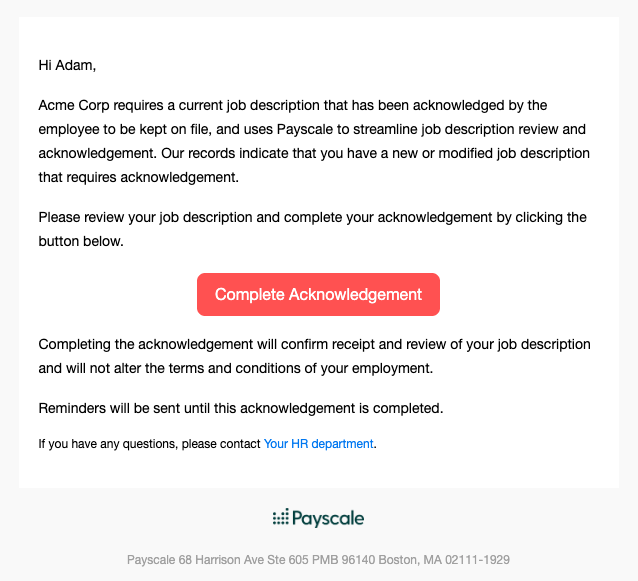
Acknowledgement Request Received via E-mail
When an acknowledgement request is sent to an employee, they will receive it in their company e-mail inbox. The content of the e-mail can be adjusted to your company's needs and requirements on the Settings page by an Admin. Learn more.
Log in, Review, Sign Acknowledgement
When the employee follows the "Complete Acknowledgement" link, they will be brought to our internal document signature page.
They will be asked to log in with the e-mail address at which they received the request.
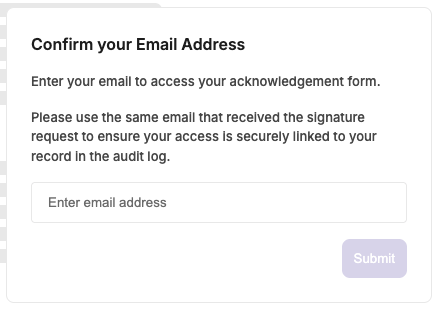
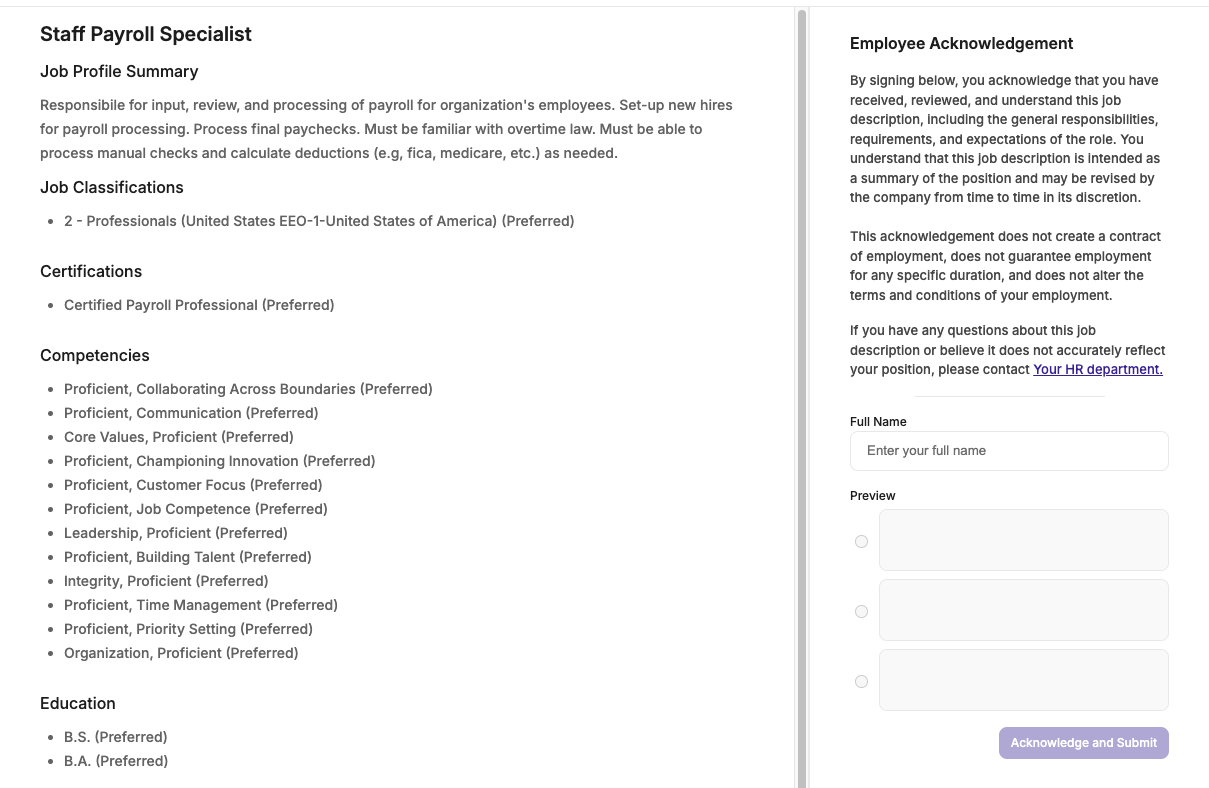
They will then be shown the contents of their job description and an explanation about the acknowledgment process. The content of the explanation can be customized on the Settings page by an Admin.
Once they review it, they can type in their full name and choose a font for their signature. By clicking "Acknowledge and Submit,", they acknowledge their job description.
Confirmation and Documentation
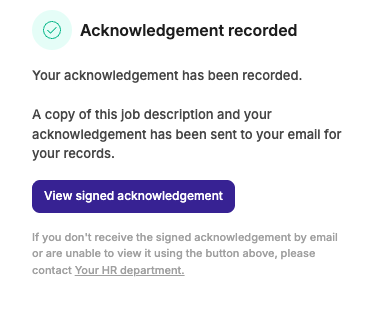
Once the employee submits their acknowledgement, they will be able to view and download the signed document.
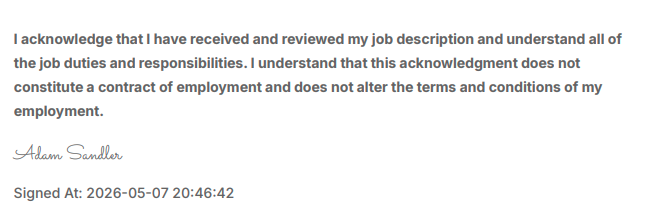
The signed document will include the full content of the job profile, the employee's digital signature and date signed, and acknowledgement text, which can be customized on the Settings page by an Admin. Learn more.
The signed document will also be sent to them as part of a confirmation e-mail they will receive to their company e-mail inbox.
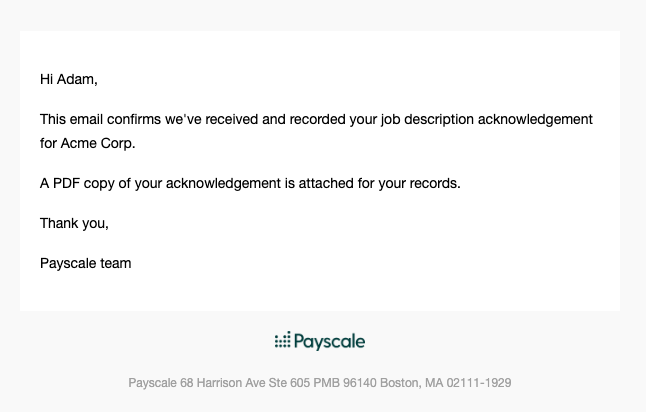
If an employee is unable to locate a copy of their signed acknowledgement:
- advise them to check their inbox and spam folder for an email titled "Your Signed Job Description"
- Download their signed acknowledgement for them from the Employee Acknowledgments Dashboard. Unless you are a JobNav Admin, you will not bel employees will not have access to the JobNav platform as it relates to Acknolwedgements, but a JobNav Admin will be able to download it for them.
Employee Acknowledgements Dashboard
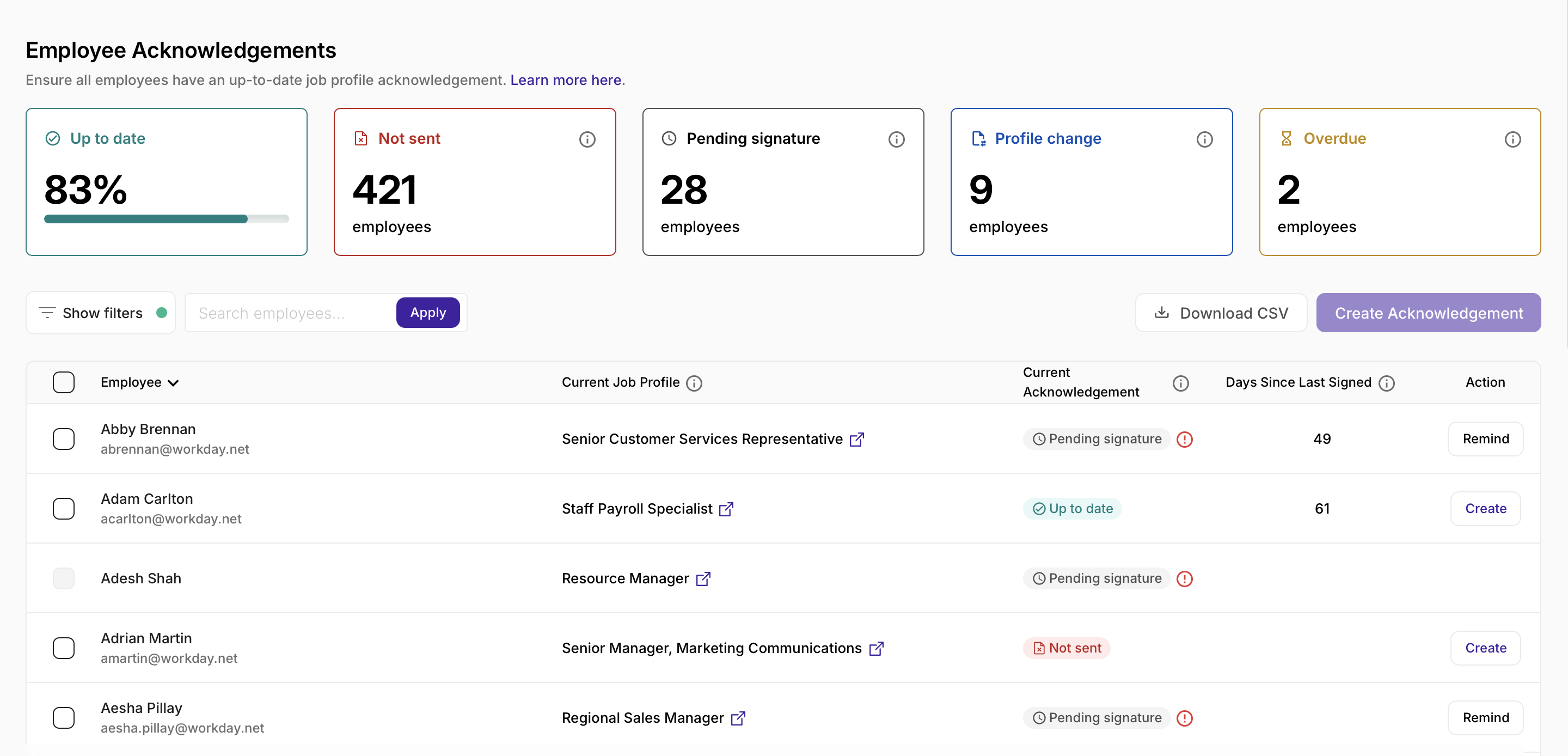
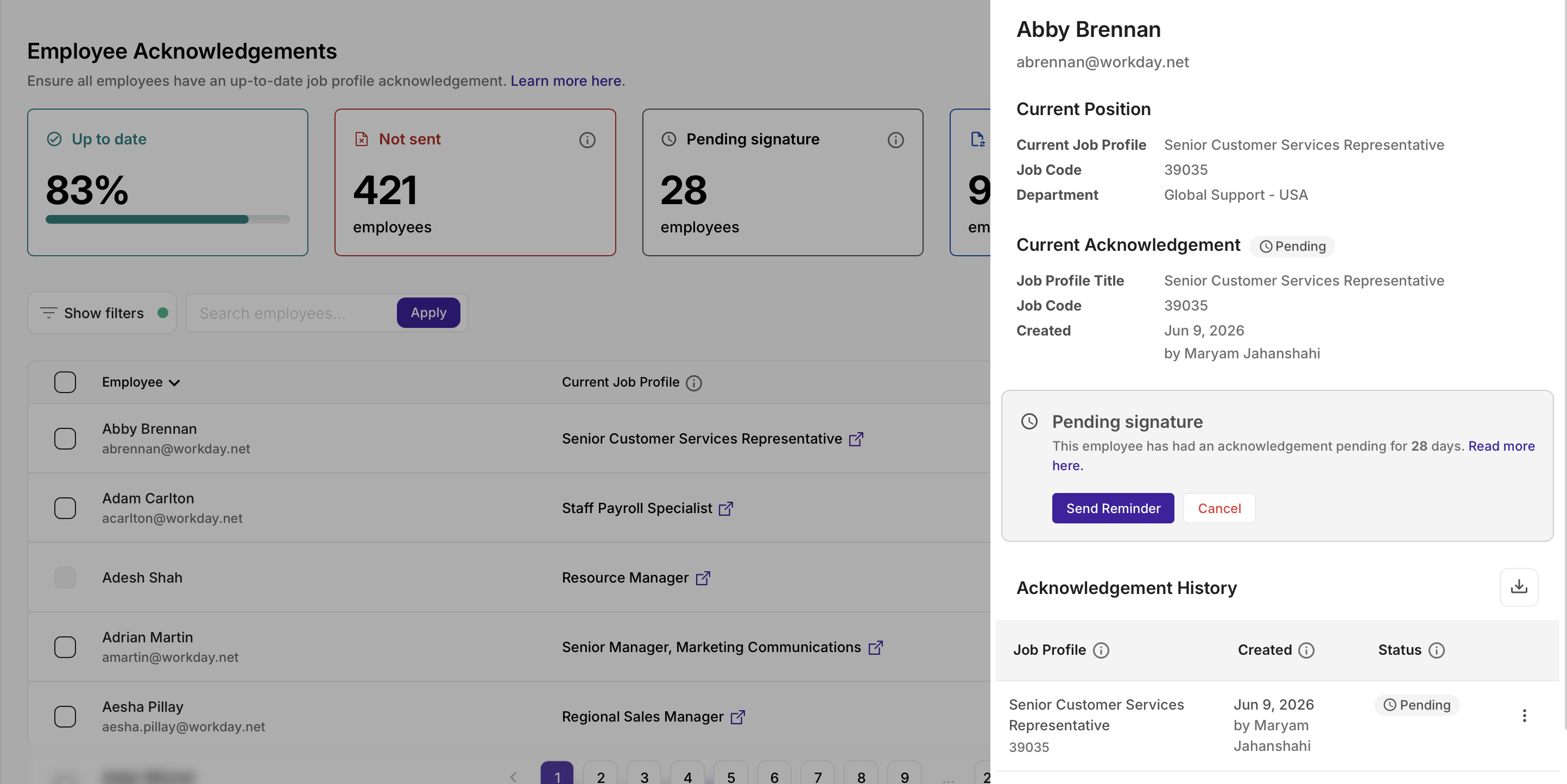
JobNav users with the Operator or Admin permission will be able to view the status of all employees on the Employee Acknowledgements Dashboard.
The Employee Acknowledgements Dashboard allows you to:
- view a complete list of your employees with their current department and job profile information, as well as acknowledgement history
- audit the status of each employee's acknowledgements and actions you can take to get them up to compliance
- filter by various subgroups to audit specific employees
Acknowledgement Categories
| Status | Meaning |
|---|---|
| Up to Date |
|
| Not Sent |
|
| Pending Signature |
|
| Profile change |
|
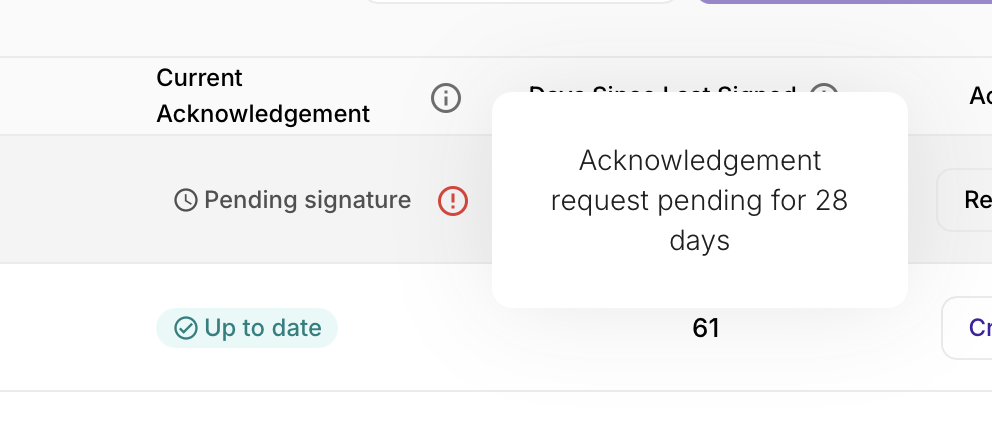
If an employee's acknowledgement request has been pending for over a certain number of days, you will see a red exclamation point next to the "Pending Signature" pill in the main table. This threshold can be set on the Settings page by an Admin. Learn more here.
Employee Acknowledgement Details and History
By clicking on a row in the employee table, you'll be able to view that employee's acknowledgement information and history in a sidebar that will appear on the right side of the screen.
This sidebar allows you to:
- view the employee's current department and job profile information
- view information about the employee's most recent acknowledgement
- view details about any "alerts" the employee has around their acknowledgement status and take relevant action
- view and download the employee's entire acknowledgements history
FAQs
Where does the employee information on the Employee Acknowledgements Dashboard come from?
If you are an integrated customer, all employee information (name, contact, department, job profile) will come directly from your HRIS. Any updates to relevant employee data made in your HRIS will be reflected on the page after the next sync.
What if the information for an employee is incorrect on the Employee Acknowledgements Dashboard?
If the incorrect information is metadata (employee name, contact, department, job profile), double check that it is correct in your HRIS. If a correction was made recently, please allow 24 hours for the information to update.
What if my organization or legal team has specific language they want to use around employee acknowledgements?
Various content can be customized on the Settings page by an Admin. Learn more here.
- Acknowledgement request e-mail content
- Acknowledgement explanation/instruction content on the signature page
- Acknowledgement language on signed documents
- HR contact information
Can I import historical acknowledgements that employees have already signed?
Currently, the acknowledgements module only supports the creation and management of new acknowledgements within the system.
Will signed acknowledgements sync back to my HRIS automatically?
No. Currently, the best workflow is to download the signed acknowledgement from the page and upload it to your HRIS.