
Using JobNav Anywhere in SuccessFactors
Create a new job in SuccessFactors
- Navigate to SuccessFactors. Click the “Create Requisition” button.
- Enter necessary details.
- Once you land on the Create Requisition tab, you will see an Edit button in the sidebar that lets you continue editing the job, along with purple covers on the Job title, header, footer and description fields.
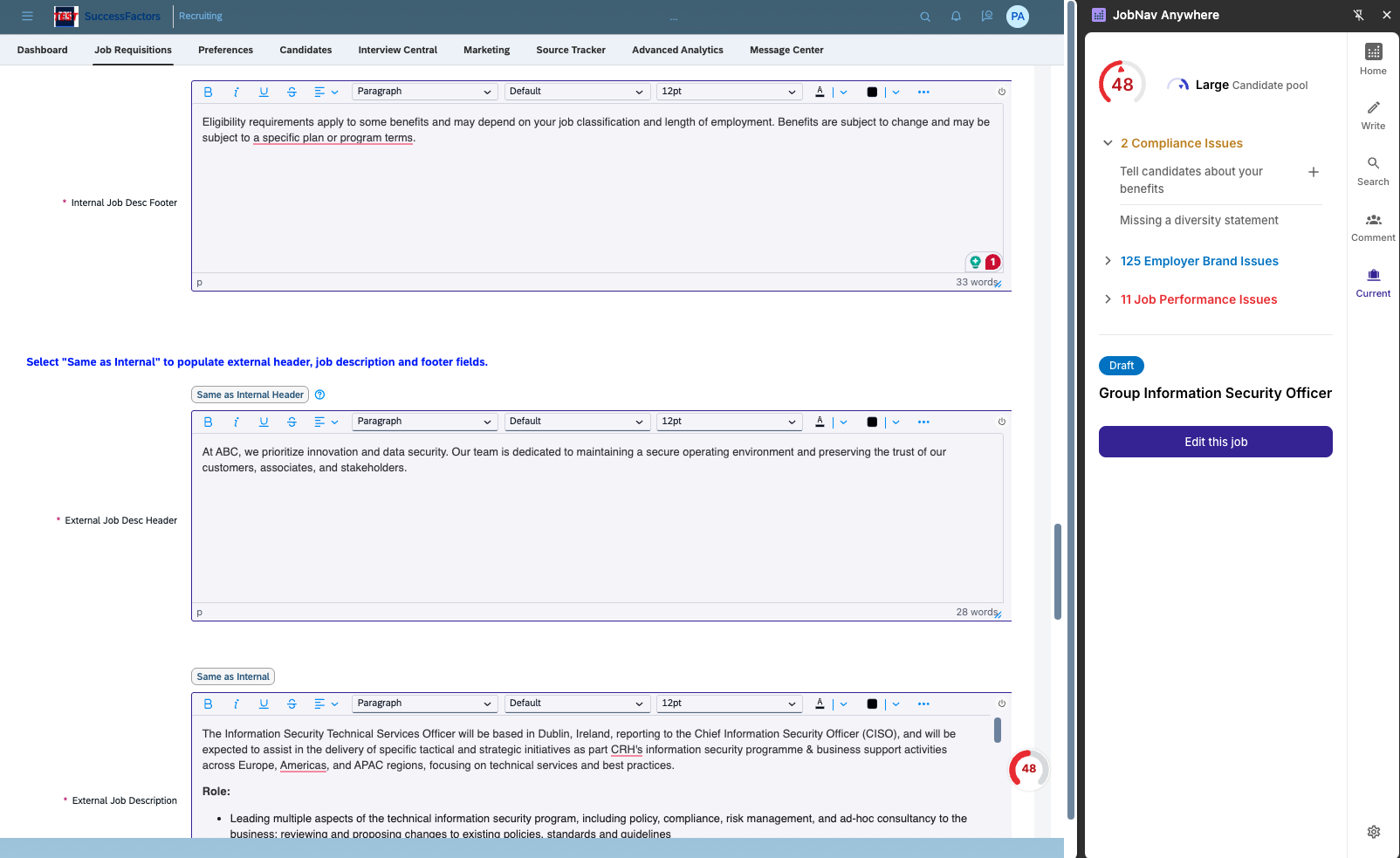
At this stage, you can,
- Continue editing the job.
- Import another existing job: In the Search tab in the sidebar, click the job you want to import, then click “Import Job”.
- To create a new draft in JobNav: Click “Write” tab and create a draft.
- To edit the job description, simply click the Edit button where applicable, and the JobNav editor will appear in a new window.
- Make edits in the JobNav editor and click Save & Close to return to the job posting in SuccessFactors. Any changes will automatically sync, and the job score will update.
Edit an existing job in SuccessFactors
- Navigate to the Job Requisitions tab in SuccessFactors. Select the requisition you want to edit.
- Once you open the job, you will see an Edit button in the sidebar that lets you continue editing the job, along with purple covers on the Job title, header, footer and description fields.
At this stage, you can,
- Continue editing the job.
- Import another existing job: In the Search tab in the sidebar, click the job you want to import, then click “Import Job”.
- To create a new draft in JobNav: Click “Write” tab and create a draft.
- To edit the job description, simply click the Edit button where applicable, and the JobNav editor will appear in a new window.
- Make edits in the JobNav editor and click Save & Close to return to the job posting in SuccessFactors. Any changes will automatically sync, and the job score will update.